


Generate subtitles automatically
Improve the performance and efficiency of your video production with our automatic subtitling feature.

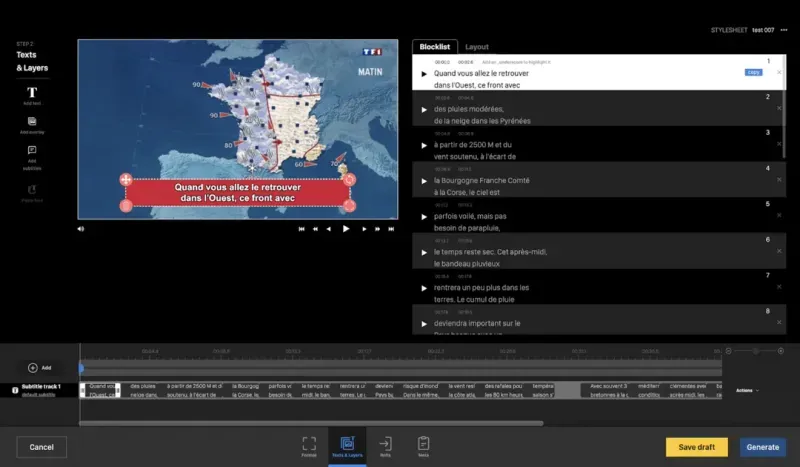
High-quality automatic subtitling
Video subtitling has become essential to the success of a video, but it needs to be both efficient and fast if it is to be effectively integrated into your production workflow. That's why automatic subtitling is THE indispensable solution!
As is a good management interface for error correction and customization. At Yuzzit, we've worked alongside customers to deliver high-performance online video editing software, enabling even the most demanding users to produce perfect subtitles very quickly.
Produce flawless automatic subtitles
Subtitling has become an essential practice for improving the accessibility and engagement of video content. With Yuzzit, you can produce high-quality automatic subtitles in just a few clicks. Combined with multilingual transcription, the interface offers unrivalled ease of use and speed of execution. Whether your objective is live, fast or ultra-personalized, Yuzzit offers an optimized navigation path to get straight to the point. Thanks to its advanced technologies, Yuzzit guarantees accurate, synchronized subtitles, enhancing the user experience and expanding your audience. Try Yuzzit today for impeccable, efficient automatic subtitling.
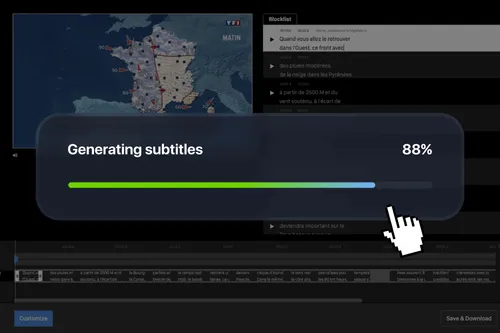
Automatic subtitling: a wide range of uses
Choose the file format that suits you best
Automatically generate high-quality subtitles and upload them in the format of your choice (SRT, VTT). The file can also be attached to your video for publication on social networks, directly from Yuzzit. Social networks will use it to display subtitles automatically and improve your video's SEO.
Create articles from your automatic subheadings
Once your subtitle file has been generated, download it in TXT format for use in an article or post. Maximize the use of your video content with automatic subtitling.
Add automatic subtitles to your live streams
Yuzzit lets you cut live excerpts into videos that you can publish instantly to social networks. You can quickly transcribe the audio into subtitles to produce high-quality videos that are easy to read, even on mobile devices. For TV channels with a transcribed text feed, this will be cut at the same time as the video extract, enabling both to be published instantly on social networks.
Boost the power of your messages
With Yuzzit, automatic subtitling of all your videos is finally possible, thanks to its ease of use, speed and transcription quality. We're constantly improving our features to ensure that they meet your expectations as closely as possible.


Optimize and customize your subtitles
Quickly customize your subtitles
With Yuzzit, you can customize how your subtitles appear on your video (font, size, color, background, placement, word highlighting, etc.). Highlight keywords and make your videos easier to follow even with the sound turned off. Subtitling a video is no longer a hassle with Yuzzit—it’s actually an asset for your content, thanks to how simple, fast, and effective it is to use.
Trim or resize your videos with subtitles
If you want to edit a video you’ve just subtitled to make it shorter, that’s no problem. Each word is linked to a timecode. The subtitle file will also be shortened while maintaining perfect synchronization. You can also change the aspect ratio of your video (landscape, square, portrait). The subtitles will automatically adjust to fit.
Create your subtitle templates
You can create video templates that include your subtitle display settings. When you use one of your templates, subtitles will be automatically generated and displayed exactly as you want them to appear. With style sheets, you can predefine the display settings for the text and subtitles you want to add to your videos for all your users, ensuring compliance with your brand guidelines.
Transcribe the audio from your videos into a TXT file
The feature that transcribes the audio from your videos into text can be saved in TXT format, allowing you to easily retrieve the content for use in an article or post.
How do you add subtitles to a video?
Step 1: Automatically generate your subtitles
Select your video and click the Customize button. Select the Text & Layer feature, then choose the video’s language to generate subtitles in that language, and start the transcription. If you’re using a custom template, skip to step 4.
Step 2: Adjust the position of your subtitles
Once the transcription is complete, select a block of text, then adjust its position and size on the video so that it doesn't cover any essential parts of the video, and specify the number of lines of text you want to display.
Step 3: Customize the text display
Once the placement has been confirmed, select a text block, click the Layout button to customize the appearance of your subtitles (font, size, color, shadow, background, etc.). Once you have finished customizing your text block, click Update to apply your changes to all the subtitles in your video. You can (without clicking Update) customize each text block individually to emphasize the message.
Step 4: Correct any transcription errors
Make your corrections directly in the text blocks that appear in the list. Your corrections will appear immediately in the video preview, making it easier to review. You can play back the block you just corrected at any time to ensure that the video and audio are still in sync.
Step 5: Adjust the content of the blocks
Since automatic transcription generates blocks of text of the same size, a sentence may span two or three blocks, which can sometimes make it harder to read and understand. You can easily move words from one block to another (from the timeline below the player) by simply clicking on the end of a block and dragging it to the right to include part of the text from the next block. Conversely, by clicking on the beginning of a block and dragging it to the left, you can include text from the previous block. This way, with just a few clicks, you can optimize the readability of each subtitle block.
Step 6: Generate your video
Once your subtitles have been created, customized, and proofread, you can generate your video (i.e., a customized copy of your original video). Your subtitles will be permanently embedded in your video. At the same time, a file containing the text of your subtitles will also be generated. You can use it to create a new version of your video or to export your subtitles in the format of your choice (SRT, VTT, TXT).
Step 7: Save your customization settings to a template
If you need to add subtitles to other videos using the same settings, you can create a template based on your video. All you’ll need to do is correct any mistakes; Yuzzit will automatically handle the rest.
How do you add subtitles to your videos?
Go beyond automatic subtitling: edit your videos with professional features

Create a video template
To customize them to match your brand guidelines and adapt the format to each social media platform.


Add text to a video
Whether you've imported or trimmed footage from a live stream or raw footage, select the "Customize" feature to add text to your video.

Add subtitles to a video
Add subtitles to your videos in just a few minutes.

Add a video thumbnail
You can create this image yourself or extract it from your video. Once your video has been uploaded to the platform, upload your image.

Video compilation
Easily create a "best-of" compilation of the best clips from a live stream or imported videos.

Produce trailers
Announce the broadcast of a program or event on social media.

Produce live video clips
Create and publish short video clips during or after your live stream with just a few clicks to expand your audience on social media.

Stream your event live
As well as on your social media, and trim clips in real time without waiting for your live stream to end.

Quickly generate a replay
Record replays of your live streams to post them, archive them, or create montages.
Frequently Asked Questions
How do I automatically transcribe subtitles?
Import your video or generate it from a live stream, select the language spoken and start the transcription. The text will be broken down into 3-second blocks. Once the transcription is complete, you can correct any errors and adjust the text for optimum readability. On average, it will take you 3 minutes to perfectly subtitle 1 minute of video with our automatic subtitling feature.
Can I edit automatically generated subtitles?
Once subtitles have been generated, our automatic subtitling feature lets you review and edit them via the Yuzzit interface. Our tool allows you to adjust text, correct errors and customize the appearance of subtitles to perfectly match your needs.
What automatic subtitle file formats are available?
The formats offered are the most common: SRT, VTT and TXT. We can add other formats on request to meet your specific automatic subtitling needs.
Can I do automatic subtitling from a live stream?
For TV channels with a transcript text stream associated with the video stream, this will be automatically cut with the video excerpts or program replays, thanks to our automatic subtitling solution.
What types of videos can benefit from automatic subtitling?
All kinds of videos can benefit from automatic subtitling: marketing videos, tutorials, webinars, training videos, live performances, even TV shows. Yuzzit is designed to be versatile and adaptable to different types of content.